Showing posts with label unpacking. Show all posts

Sunday, February 8, 2015

The Exaggerated Promises of ClickLocker: An Unpacking Tutorial


ClickLocker is marketed as a digital security solution that allows a content author to easily manage their digital rights by enabling them to regulate access to their ebook, video, or software product. While the ClickLocker website claims that "ClickLocker provides the industrial-strength security you deserve", this is a blatant exaggeration and misleading statement. When we think of industrial-strength security, we assume that this implies the use of cryptography. However, this is not the case with ClickLocker. In this tutorial, we will reverse engineer the ClickLocker Demo application to show you how easy it is to extract an embedded file without the need of a valid license code. To begin, let's download the demo application below.

Demo Application:
http://www.clicklocker.com/ClickLockerDemo.exe

After you have finished downloading, let's scan the file with a protection scanner. In this example, I used ExeInfoPE.


As we can see, the target application is simply compressed with UPX. This is quite common with most clicklocker applications I have encountered. To remove this, we will simply use the UPX command line utility with the -d parameter to decompress the target.


Now that it is unpacked, we can begin debugging the application. However, before we start, I will give you a quick rundown of how ClickLocker works so that we can understand how the unpacking process works.


When you start a clicklocker protected application, it will ask you to enter a license code to unlock the program. Once you have entered the 8 digit key, it will connect to the clicklocker server and to verify the license code. Once it checks the license key, it will return 1 of 5 possible strings from the server. Those strings are "good", "bad", "new", "used", "expired", or "suspended". By looking at these, I am sure you can guess that the value we need returned by the server in order to unlock the program is "good". When we enter the key 12345678, chances are, that the server will return the value "bad". In order to exploit this, we will just need to change the returned value to "good". Once the license has been verified, the program will extract the file to the TEMP directory under a random name, apply a super hidden attribute, execute the file, and then delete it. Our goal is to arrive directly after it extracts the file to disk and before it applies the super hidden attribute. To begin, let's go ahead and open the application in Ollydbg and search for all referenced text strings.


First, let's set a breakpoint on all 4 references to the string "good". Afterwards, we need to search for the string "Authenticated Successfully!" This value is returned after the unlocking process is successful. Once you have the breakpoints set as in the picture above, let's start the program in ollydbg and enter the key "12345678".


After clicking Unlock Now, we will break on one of our "good" breakpoints.


Once we arrive here, we can see that both EAX points to the "bad" string returned from the server while ECX contains its size of 3. In order to trick the program into believing it was authenticated by the server, we need to change the string "bad" to "good" and the size in ECX to 4, which is the length of the new string. Let's follow the dword of EAX in the dump so that we can alter the string value.


Now, let's simply change the value to "good".


Once you are finished, we just need to change the value of ECX to 4 so that it is the same length as our new string.
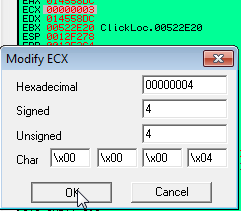


Now, let's run the program. If everything was done correctly,  we should arrive at the "Authenticated Successfully!" string 2 breakpoints later.


At this point, we simply need to press f8(step over) 8 times to arrive here:


At this point, follow the value of EDX, which was assigned by the instruction at 4DBF26 in the dump to get the path and name of the file that will be extracted.


Let's note this path and file name and press F8. After the called routine is finished, it will have extracted the protected file to the temp directory under the name we had above. Let's open our temp directory and find it.


As you can see, we have found our extracted file. If for some reason you are unable to see your file, it may  already have a super hidden attribute which is often the case with PDF files. In that case you need to change your folder settings to show hidden files and uncheck the option which says hide protected operating system files.


After doing this, you should be able to find your file. If I recall correctly, a pdf file may have a .tmp extension in order to better hide it. Once you have found the file, you can simply move it to a new directory, rename it if you like, and use the command line parameter attrib -s -h filename.ext to remove the supper hidden attribute if needed.


Once you are finished, you have successfully beaten this protection. Let's run the application to verify:


Now that we are finished, I must state that the goal of this tutorial was NOT to teach you how to pirate a ClickLocker protected product, but rather to show you that this product is not as strong as their website implies. A good DRM management software would employ encryption that could not be broken without a valid decryption key being supplied by the server upon activation. This is far from the case with ClickLocker. While my goal here is not to defame ClickLocker, I hope that you will consider these factors before using their low security product. Until next time, happy reversing.

Saturday, December 20, 2014

Unpacking Jar2Exe 2.1: Extracting The Jar File At All 3 Protection Levels


Welcome to this extensive tutorial for unpacking Jar2Exe. Jar2Exe is a java executable wrapper which works by taking your original java archive, wrapping it into an executable, and executing it through a virtual environment using the jvm.dll provided with each java distribution. It also provides the ability to hide your archive and encrypt the class names making recovery difficult.  The goal of this tutorial is to demonstrate how to recover a jar file at the 3 different protection levels provided by Jar2Exe.

In this tutorial, I will be using the file SimpleApp.jar which is included with launch4j. You can protect it with the same settings to reverse along with me.

Tools Needed:
Resource Hacker
Winhex
Ollydbg 1.10+ MemoryDump 0.9 and  Olly Advanced or StrongOD Plugin(for advanced ctrl+g).
DJ Java Decompiler
7-Zip or Winrar

Jar2Exe Level 1: No Hiding, No Encryption:


This is the default wrapping level which provides no protection to your java file. As you can see, the Hide class files and Encrypt and hide class files options are left unchecked. This level of protection simply takes your java archive/jar file, concatenates it to the end of the executable, and embeds its java files inside of it. This java archive can be recovered using a hex editor, just like we did with launch4j in the previous tutorial. To begin, we will open sample file called 'SimpleAppNoHide.exe' in winhex. To find the archive, scroll to the bottom of the file. Another option you can try other than scrolling is to search for the ascii string "serial "(with the space). This should take you directly to the archive, but I cannot guarantee that this approach will always be successful.

 Once you are here, the first occurrence of 'PK' labels the start of our archive. We can label this as our beginning of block:


Afterwards, we can scroll to the very last byte in the file and label it as our End of Block:


Once you have done so, right click the selected block and click Edit. In the new pane, go to Copy Block -> Into New File.


Afterwards, we can save it as a jar file. I used the name SimpleAppNoHide.jar:


Once we are finished, the program will run correctly, but to be tidy, we need to delete the extra files that Jar2Exe added to our archive. Let's open the archive in 7-zip or winrar(whichever you fancy).


Once it is opened, you can see that Jar2Exe adds an additional directory called 'com'. While some other java applications may use this directory, Jar2Exe adds an additional subdirectory called regexlab.


After entering the com directory, we see that regexlab is the only subdirectory it contains, meaning that the entire com folder is unused and can simply be deleted from the archive, let's go ahead and delete it:


After confirming the deletion, we can close the archive and run the jar file.


If you did everything correctly, the application should run without problems and our work is finished.

Jar2Exe Level 2: Hidden Archive:


With the level 2 protection, Jar2Exe takes our java archive, encrypts it, and adds it as an RCData entry in the resource directory. To find the offset of the encrypted archive, we need to open our executable which I named 'SimpleAppHide.exe' in a resource editor. For this, I prefer resource hacker:


Above, we have located the encrypted data in the "RCData" section of the resource table. In this case, our offset is 46398h. Keep a note of this and open the application in Ollydbg. Once you have it opened, go to the hex dump section and go to the offset above:


Once you arrive at the offset, right click the byte and add a Hardware Breakpoint On Access -> Byte:


Now, let's run the program and wait for the break to occur. We should arrive here:


This loop will decrypt our archive byte for byte. Let's toggle a breakpoint on the instruction after the loop. In this example, the instruction is 00401BE3 > CMP DWOR PTR SS:[ESP+18],EBP. Run the program now and let the decryption complete. Once we break here, the register EAX will contain the location where our decrypted jar file is located and ECX contains its size. Using this information, we are ready to dump the file from memory. To do this, I found a very simple plugin called Memory Dump. It allows you to simply specify a memory address and size to dump those bytes to disk. Let's open the plugin:


To begin, check the field which says End Address / Lenght. This will allow us to enter the length value. Set the Start Address to the value in EAX and the lenght(length) equal to the value in ECX. In my case, the address is 296810 and the size is 11EC. Once you have entered these values, we are ready to dump this to disk.


A limitation of this tool is that you can only save the file with a .dmp extension, but we can easily rename it once we are finished. Simply save it  with the name you fancy. In this case I named it as SimpleApp3Hide.dmp for easy recognition.


After a quick renaming, the file is ready to run.


Jar2Exe Level 3: Hidden Archive + Encrypted Class Names:


This is the strongest protection offered by Jar2Exe. First, it changes all of the class file names to gibberish. Second, it encrypts and hides the files just like the level 2 protection. While we can recover the archive with a similar method as in Level 2, we need to take an additional step to repair the class names.

To begin, let's open the application "SimpleAppEncrypt.exe" in a resource editor just as before to acquire the offset of the encrypted RCData:


Our offset in this case is 49398h. Let's note that and open the application in Ollydbg and follow the offset.


Once we arrive at the offset, place a hardware breakpoint on access-> byte just like before.


Run the program an wait for the breakpoint. We should arrive at the following code:


This is the new decryption routine. The instruction 0040ACED-> MOV BYTE PTR DS:[ECX],AL will move each decrypted byte to their new memory location.


According to the code, the address of the memory location where our file is decrypted to can be found at the stack pointer [ESP+18].


The value at ESP+1C contains the size of the memory region. This can be verified by checking the decrement value of the loop.


This code verifies that ESP+1C is the value decremented. ESP+1c is moved to EAX, decremented, and then moved back.

At our current location where the hardware breakpoint landed us, the values at ESP +18 and ESP+1C are the ones we need for our dump. Please note them and target a breakpoint on the instruction outside of the loop.


Once you break here, we are ready to make a dump of the file. But first, I would like to show you the encrypted strings in our archive to give you a glimpse of how jar2exe encrypts them:


As you can see here, the names of our classes and manifest files have been completely obfuscated. As a result, we need to recover these names manually. The way that jar2exe gets the original names for the class is to read them directly from the class file itself. I will show you a simple approach to doing this once we dump the archive.

Now since I am finished digressing, let's dump the file just like before.


In my case, the location of the decrypted file is at 296858 and its length is 1284. We are ready to dump:


Now that we have saved the file, let's rename change the extension to .jar and prepare to extract the contents.


Please note that due to the encryption employed on the names, the file will not run until we correct the classes. Let's extract the contents to a new folder so we can begin repairing.


Once we have extracted the files, let's open the new directory and see the files.


As we can see here, the file names are complete gibberish. The randomly named directories will typically not contain a file and can be deleted. The rest of the files will be the original class and manifest files. To begin the recovery, I like to first identify which file is the manifest. We can usually assume that the manifest will be the smallest file contained in the archive. The manifest.mf file tells the java runtime which file contains the main() class. Without it, the runtime would not know how to execute the code. Let's find the smallest file and open it in a text editor.


As you can see, we have identified our manifest file. This file should be renamed to 'MANIFEST.MF' and placed in a subdirectory called 'META-INF'. Remember that these names are case sensitive and must be typed in all uppercase.


To continue with the rest of the files, let's add a '.class' extension to each of them and open them in your favorite java decompiler. You can read these names with a hex editor if you fancy, but a decompiler makes it a little cleaner. Let's begin with the largest file which is 4kb. I will open it in DJ Java Decompiler.


As we can see here, we have identified the name of this class file as SimpleApp which according to the manifest, contains our main() procedure. The name of the package this file resides in is 'net.sf.launch4j.example'. The dots between these words represent a subdirectory. That means that this class belongs in a folder hierarchy of net/sf/launch4j/example. Let's rename this to class file to 'SimpleApp.class', create the directory hierarchy listed above, and place this file in it.


Now that we have completed this, we just need to go back and follow the same steps for the rest of the files. Please remember that every name is case sensitive. Once you have recovered each of them and placed them into the correct directory(there is only one directory), it should look like this:


Now that we are done, it is time to recreate the jar file. A jar file is simply a zip archive under a different extension. All we need to do is go back to the directory that contains our two folders named 'net' and 'META-INF' and add them to a zip archive.


Now, we simply change the extension of the zip archive to jar and it is ready to run.


Now let's see the finished result:


I hope that you have learned a few things from this tutorial and have walked away with some new knowledge. If something in this tutorial is not clear, please feel free to post a comment and I will try to explain it further. Until next time, happy reversing.
